Starting Your Event Planning with Pholeo: Item Wizard
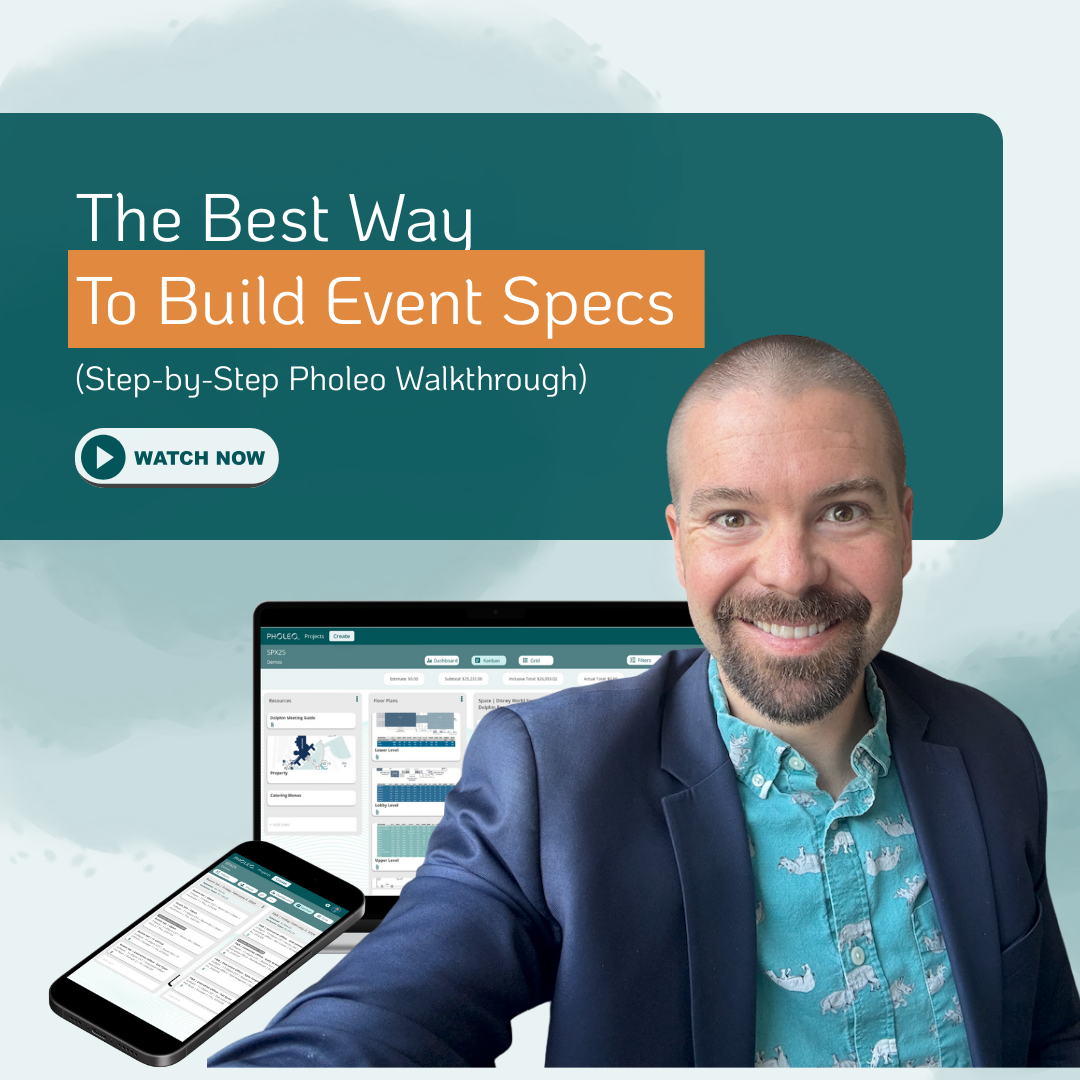
Feeling overwhelmed with event planning? Learn how to streamline the process with Pholeo! In this video, we guide you through creating and managing event details using Pholeo's intuitive platform. From setting up locations and budgets to adding products and services, see how Pholeo makes event planning effortless.
Gregory Perrine · Jul 26, 2024 · 1 min read
Starting a new event can feel overwhelming, but Pholeo is here to simplify the process. With our intuitive platform, you can streamline event planning from start to finish. Follow the guide below or watch the video above to start using the Item Wizard to streamline your event planning!
Creating Your Event
First, create a new event under your chosen project. Pholeo’s interface guides you through building your event step-by-step. Look for the “Start Here” arrow to point you to the Item Wizard.. Use the item wizard to create a new item, such as a breakfast for 25 people.
Setting Up Details
Next, specify the list or create a new one with the event date. Add the location and details, like “Ballroom A,” and set up budget areas (e.g., food and beverage). Input important notes, start and end times, and expected attendance.
Adding Products and Services
You can add products or services to your event. For example, include soft drinks, set the price, and quantity, and Pholeo will calculate the subtotal and total for you. This helps in managing your budget efficiently.
Finalizing Your Event
Finish by entering the overall event budget and updating it with actual costs once invoices are received. Pholeo’s user-friendly platform allows you to keep track of all items and lists, making your event planning smooth and organized.
With Pholeo, you can create and manage events effortlessly, ensuring every detail is accounted for. Try Pholeo today and experience a new level of efficiency in event planning!